



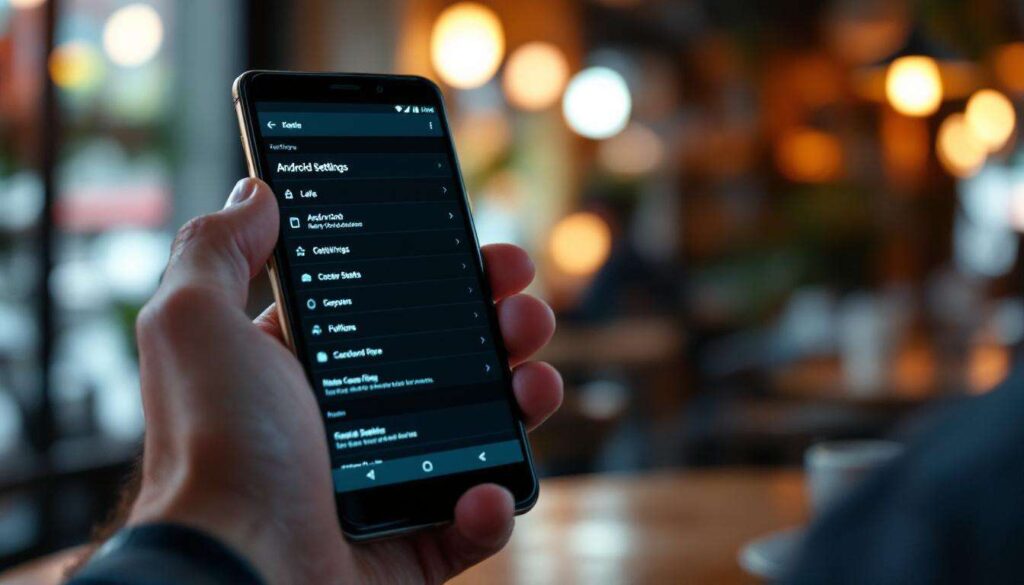
Setting up a new Android phone is an exciting experience, but the default configurations don’t always align with optimal performance or privacy. Many pre-installed settings can drain your battery, compromise your personal data, or simply slow down your device. Taking a few minutes to adjust these configurations immediately after unboxing can significantly improve your smartphone experience. These six settings deserve immediate attention on any new Android device, regardless of manufacturer or model.
Disabling unnecessary notifications
Why notification overload harms productivity
The constant barrage of notifications from pre-installed applications represents one of the most intrusive aspects of modern smartphones. Notification fatigue isn’t just annoying; it actively reduces productivity and increases stress levels. Most Android devices arrive with dozens of apps already configured to send alerts, many of which serve little practical purpose.
To regain control over your notification panel, navigate to Settings, then Notifications, and systematically review each application. Disable notifications for apps you rarely use or those that send promotional content. Priority should be given to essential communications like messages, calls, and calendar reminders.
Creating a notification hierarchy
Not all notifications deserve equal treatment. Consider implementing this tiered approach:
- Critical notifications: phone calls, messages from key contacts, security alerts
- Important notifications: emails from priority senders, calendar events, delivery updates
- Optional notifications: social media, news apps, promotional content
- Disabled notifications: games, bloatware, manufacturer marketing
This systematic approach ensures that genuinely important information reaches you without the distraction of irrelevant alerts. Understanding these notification priorities naturally leads to another crucial setting that affects both performance and user experience.
Reducing automatic brightness
The adaptive brightness problem
Adaptive brightness sounds convenient in theory, but in practice, it often miscalculates appropriate screen illumination. The feature relies on ambient light sensors that frequently overcompensate, leaving your screen unnecessarily bright in moderate lighting conditions. This excessive brightness not only strains your eyes but also significantly impacts battery longevity.
Disabling automatic brightness allows for manual control, which typically results in lower average screen brightness throughout the day. Most users find that setting brightness between 30-50% provides adequate visibility in most indoor environments whilst conserving substantial battery power.
Establishing manual brightness habits
After disabling adaptive brightness, develop a routine for adjusting screen illumination based on your environment. Quick settings provide immediate access to brightness controls, making adjustments effortless. Consider these guidelines:
| Environment | Recommended Brightness | Battery Impact |
|---|---|---|
| Direct sunlight | 80-100% | High |
| Indoor lighting | 30-50% | Low |
| Dim environments | 10-20% | Minimal |
| Night-time use | 5-15% with night mode | Minimal |
Beyond screen brightness, another setting continuously operates in the background, potentially compromising both battery life and privacy.
Disabling background location services
The hidden cost of constant location tracking
Numerous applications request permission to access your location even when not actively in use. Background location tracking represents a significant privacy concern whilst simultaneously draining battery resources. Weather apps, shopping platforms, and social media applications often default to continuous location monitoring despite requiring this data only intermittently.
Navigate to Settings, then Location, and review which applications have background location access. For most apps, switching from “Allow all the time” to “Allow only while using the app” provides adequate functionality without the privacy compromise or battery drain.
Applications that genuinely require location access
Certain applications legitimately benefit from background location services:
- Navigation apps that provide real-time traffic updates
- Fitness trackers monitoring running or cycling routes
- Find My Device security features
- Delivery services requiring precise location data
For everything else, on-demand location access suffices. This selective approach protects your privacy whilst maintaining functionality where it genuinely matters. Location services aren’t the only background processes that warrant scrutiny on a new device.
Managing automatic updates
Why unrestricted updates cause problems
Automatic application updates seem beneficial initially, but they frequently occur at inconvenient moments, consuming mobile data and processing power when you need your device most. Unrestricted automatic updates can download gigabytes of data over cellular connections, potentially exceeding data allowances and incurring additional charges.
Access the Google Play Store settings and modify auto-update preferences to “Over Wi-Fi only” or “Don’t auto-update apps”. Manual update management allows you to review what’s being installed and when, preventing unwanted changes to application interfaces or functionality.
Establishing an update routine
Rather than allowing updates to occur randomly, create a weekly routine for reviewing and installing application updates. This approach provides several advantages:
- Control over when updates consume bandwidth and battery
- Opportunity to review update changelogs before installation
- Ability to postpone problematic updates reported by other users
- Prevention of unexpected interface changes during important tasks
Whilst updates matter for security and functionality, another visual element affects device performance more than many users realise.
Disabling system animations
The performance impact of visual effects
System animations make Android interfaces feel polished and modern, but they also introduce perceptible delays between actions. Each transition animation adds milliseconds to every interaction, accumulating into noticeable lag throughout daily use. Disabling or reducing these animations transforms device responsiveness dramatically.
To access animation settings, first enable Developer Options by navigating to Settings, then About Phone, and tapping Build Number seven times. Once Developer Options appear in your settings menu, locate these three animation scales:
- Window animation scale
- Transition animation scale
- Animator duration scale
Setting each to 0.5x provides a noticeable speed improvement whilst maintaining visual feedback. Setting them to “off” maximises responsiveness but may feel abrupt initially. Experiment to find your preferred balance between aesthetics and performance.
Additional developer options worth exploring
Whilst in Developer Options, consider adjusting background process limits to further enhance performance. This prevents excessive applications from running simultaneously, freeing system resources for active tasks. These performance optimisations complement the final crucial setting adjustment.
Battery and power-saving mode optimisation
Configuring intelligent battery management
Android’s battery management features have evolved considerably, but default configurations often prioritise convenience over longevity. Adaptive battery settings learn usage patterns over time, but initially, they allow all applications equal resource access. Manually restricting battery usage for seldom-used applications immediately improves endurance.
Navigate to Settings, then Battery, and review battery usage by application. For apps used infrequently, select “Restricted” battery usage. This prevents them from running in the background whilst still allowing normal function when actively opened.
Power-saving mode customisation
Rather than waiting until battery levels become critical, configure power-saving mode to activate at 30-40% remaining charge. This proactive approach extends usable battery life significantly. Customise which features power-saving mode restricts:
| Feature | Impact When Disabled | Recommendation |
|---|---|---|
| Background sync | Delayed notifications | Disable for non-essential apps |
| Location services | Reduced navigation accuracy | Keep enabled if needed |
| Visual effects | Faster interface | Disable completely |
| 5G connectivity | Slower data speeds | Disable to extend battery |
Tailoring power-saving mode to your specific usage patterns ensures it enhances rather than hinders your experience. These battery optimisations complete the essential configuration adjustments for any new Android device.
Taking control of these six settings immediately upon acquiring a new Android phone establishes a foundation for optimal performance, enhanced privacy, and extended battery life. These adjustments require minimal time investment but deliver substantial improvements to daily smartphone usage. Rather than accepting manufacturer defaults, these modifications ensure your device operates according to your priorities and preferences, creating a more efficient and personalised mobile experience.