



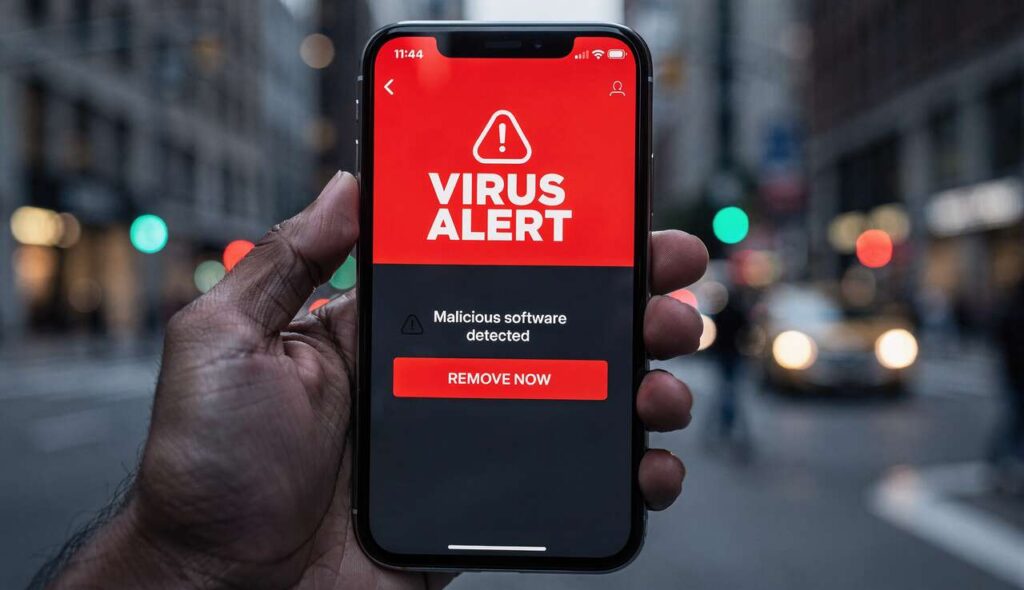
Mobile phones have become indispensable tools in our daily lives, storing everything from personal photographs to banking credentials. Yet this convenience comes with a significant risk: malware and viruses that can infiltrate your device without your knowledge. Understanding the warning signs of a compromised phone is crucial for protecting your personal information and maintaining your device’s functionality. When certain symptoms appear on your screen, they often indicate that your phone has fallen victim to malicious software, requiring immediate action to prevent further damage.
Signs your phone is infected with a virus
Unusual battery drain and overheating
One of the most telling indicators of a virus infection is abnormal battery behaviour. When malware runs in the background, it consumes significant processing power, causing your battery to deplete much faster than usual. Legitimate apps typically operate efficiently, but malicious software often works continuously to collect data or display unwanted advertisements. If your phone becomes unusually warm even during light usage or whilst sitting idle, this overheating may signal that hidden processes are running without your consent.
Unexpected pop-up advertisements
Aggressive pop-up adverts appearing outside of web browsing sessions represent a clear warning sign of adware infection. These intrusive notifications may appear on your home screen, within system settings, or even when using unrelated applications. The advertisements often promote dubious products or services and may attempt to trick you into downloading additional malware. Legitimate advertising remains confined to specific apps or websites, whereas infected devices display pop-ups across the entire operating system.
Unexplained data usage spikes
Monitoring your data consumption can reveal hidden threats. Viruses frequently transmit information from your device to remote servers, resulting in substantial increases in mobile data usage. Check your phone’s data usage statistics through the settings menu to identify any unfamiliar applications consuming excessive bandwidth. The following symptoms warrant immediate investigation:
- Monthly data allowances depleting much faster than normal
- Unknown apps appearing at the top of data usage lists
- Significant data consumption occurring during periods of inactivity
- Unexpectedly high bills from your mobile network provider
Unfamiliar apps and icons
The appearance of unrecognised applications on your device serves as perhaps the most obvious indicator of infection. Malware often installs additional software without user permission, creating new icons on your home screen or within your app drawer. These rogue applications may disguise themselves with generic names or icons resembling legitimate system tools. Regularly reviewing your installed apps helps identify these unwanted additions before they cause serious harm.
Recognising these symptoms provides the foundation for understanding which specific threats may have compromised your device.
Suspicious apps to look out for
Common malware disguises
Cybercriminals employ sophisticated tactics to make malicious apps appear legitimate. They often mimic popular applications by using similar names, icons, and descriptions. For instance, a fake banking app might be named “BankApp Pro” instead of the official “Bank App”, or a counterfeit game could add extra words to a well-known title. These subtle differences can easily fool unsuspecting users during quick installations.
| Legitimate App | Malicious Imitation | Key Difference |
|---|---|---|
| WhatsApp Plus | Unofficial modified version | |
| InstaGram Pro | Altered capitalisation and added word | |
| Netflix | NetFlix HD | Incorrect capitalisation and suffix |
Red flags during installation
Paying attention to permission requests during app installation can prevent many infections. Malicious software typically demands excessive access to your phone’s features and data. A simple torch app, for example, should only require camera access for the flash, not permission to read your contacts, messages, or location. Excessive permission requests represent a major warning sign that should prompt immediate cancellation of the installation process.
Apps from untrusted sources
Installing applications from outside official app stores dramatically increases infection risk. Third-party app stores and direct APK files from websites often host malware disguised as premium apps offered for free. The following sources pose particular danger:
- Unofficial app repositories claiming to offer paid apps without charge
- Email attachments containing installation files
- Links shared through messaging apps promising exclusive content
- Websites offering “cracked” or “modded” versions of popular apps
Understanding how these malicious apps operate leads naturally to examining the broader mechanisms through which your phone’s defences are breached.
How your phone’s security is compromised
Phishing attacks and social engineering
Many infections begin with deceptive messages designed to manipulate users into taking harmful actions. Phishing attempts arrive via text message, email, or social media, often impersonating trusted organisations such as banks, delivery services, or government agencies. These messages create urgency by claiming your account has been compromised or a package requires immediate attention, prompting you to click malicious links or download infected files.
Exploiting system vulnerabilities
Outdated operating systems contain security flaws that cybercriminals actively exploit. When manufacturers discover vulnerabilities, they release updates to patch these weaknesses. However, users who postpone or ignore these updates leave their devices exposed to known threats. Zero-day exploits represent particularly dangerous vulnerabilities that hackers discover before manufacturers can address them, allowing malware to infiltrate even up-to-date systems through sophisticated attack methods.
Public Wi-Fi networks
Connecting to unsecured wireless networks in cafés, airports, or hotels creates opportunities for attackers to intercept your data. Cybercriminals can set up fake Wi-Fi hotspots with convincing names like “Free Airport WiFi” or “CafeGuest”, capturing information transmitted by connected devices. Even legitimate public networks often lack proper encryption, allowing tech-savvy criminals to monitor traffic and inject malware into your device during seemingly innocent browsing sessions.
Once you understand these infection vectors, you can take concrete steps to eliminate existing threats from your device.
Steps to remove a virus from your device
Restart in safe mode
Booting your phone into safe mode disables third-party applications, preventing malware from running whilst you attempt removal. The process varies by device, but typically involves holding the power button, then pressing and holding the “Power off” option until a safe mode prompt appears. Safe mode operation allows you to identify and uninstall problematic apps without interference from the virus itself.
Identify and uninstall malicious apps
Navigate to your phone’s settings and review the complete list of installed applications. Look for unfamiliar names, recently installed apps coinciding with when problems began, or software you don’t remember downloading. Follow these removal steps:
- Open Settings and select Apps or Applications
- Sort by installation date to identify recent additions
- Select suspicious apps and tap Uninstall
- If uninstall is greyed out, the app has administrator access requiring revocation first
- Go to Security settings, find Device Administrators, and deactivate the malicious app
- Return to Apps and complete the uninstallation
Use reputable security software
Installing a trusted antivirus application from your device’s official app store provides automated scanning and removal capabilities. Reputable security apps from established companies like Norton, McAfee, or Avast can detect threats that manual inspection might miss. Run a complete system scan and follow the software’s recommendations for quarantining or deleting infected files. Avoid free antivirus apps from unknown developers, as these may themselves contain malware.
Clear cache and data
After removing suspicious apps, clearing cached data helps eliminate residual malicious files. Navigate to Settings, select Storage, and choose Cached Data to clear system-wide temporary files. Additionally, clear the cache and data for your web browser, as some malware operates through browser exploits. This process may sign you out of websites and remove saved preferences, but it ensures thorough removal of potential threats.
Factory reset as a last resort
When other methods fail to eliminate persistent infections, performing a factory reset returns your device to its original state. This drastic measure erases all data, apps, and settings, so backup important files to cloud storage or a computer beforehand. Access the reset option through Settings under System or General Management, then select Reset or Factory Data Reset. After completion, reinstall apps only from official sources and restore personal files from your backup.
Successfully removing malware represents only half the battle; implementing preventive measures ensures future protection.
Tips to protect your phone in the future
Download apps only from official stores
Restricting installations to authorised app marketplaces significantly reduces infection risk. Google Play Store and Apple App Store implement security screening processes that filter out most malicious software. Disable the option to install apps from unknown sources in your security settings. This single precaution prevents the majority of malware infections that occur through third-party downloads.
Keep your operating system updated
Regularly installing system updates provides essential security patches that protect against newly discovered vulnerabilities. Enable automatic updates in your phone’s settings to ensure you receive critical fixes as soon as manufacturers release them. These updates often include improvements to built-in security features alongside bug fixes and performance enhancements.
Review app permissions carefully
Before granting permissions, consider whether the requested access makes sense for the app’s stated purpose. A weather app reasonably requires location access but has no legitimate need for your contacts or messages. Modern operating systems allow you to review and modify permissions after installation, so periodically audit which apps can access sensitive features:
- Camera and microphone access
- Location tracking
- Contact lists and call logs
- Text messages and notifications
- Storage and media files
Use strong authentication methods
Implementing robust security measures prevents unauthorised access even if malware infiltrates your device. Enable biometric authentication such as fingerprint or facial recognition alongside a strong passcode. Activate two-factor authentication for important accounts, requiring a second verification step beyond your password. These layers of protection limit the damage malware can inflict by restricting access to sensitive information and services.
Be cautious with links and attachments
Exercising healthy scepticism towards unexpected messages prevents many infections. Verify sender identities before clicking links or downloading attachments, especially when messages create urgency or request personal information. Legitimate organisations rarely ask for sensitive data through email or text. When in doubt, contact the supposed sender through official channels rather than responding directly to suspicious messages.
Mobile device security requires vigilance and proactive measures to combat evolving threats. Recognising infection symptoms such as battery drain, unexpected pop-ups, and unfamiliar apps enables early detection of malware. Understanding how viruses compromise your phone through phishing, system vulnerabilities, and unsecured networks helps you avoid dangerous situations. When infection occurs, safe mode operation, manual app removal, security software, and factory resets provide effective remediation options. Maintaining protection requires downloading apps exclusively from official stores, installing system updates promptly, reviewing permissions carefully, implementing strong authentication, and approaching unexpected messages with caution. These practices collectively create a robust defence against the persistent threat of mobile malware.