



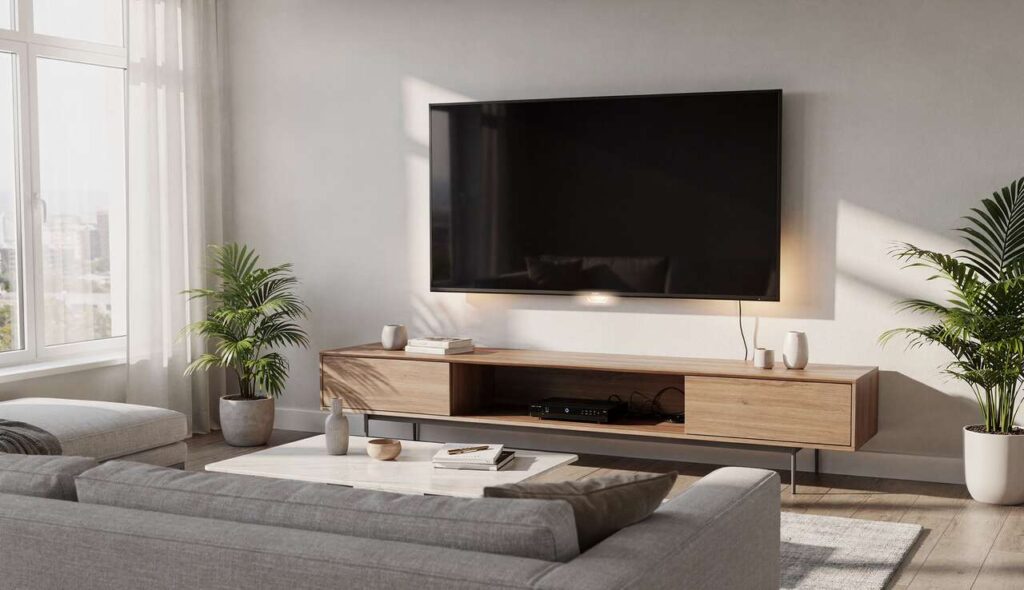
Most modern televisions come equipped with at least one USB port, yet many owners overlook this feature entirely. These ports offer far more functionality than simply serving as a decorative element on your television’s frame. Whether you own a budget model or a premium smart TV, the USB connection provides practical solutions for everyday entertainment and device management needs. Understanding how to maximise this built-in feature can enhance your viewing experience whilst reducing cable clutter and simplifying your home entertainment setup.
Use it to charge your mobile devices
The USB port on your television functions as a convenient charging station for smartphones, tablets, and other portable electronics. This feature proves particularly useful when wall sockets are scarce or already occupied by other devices in your living room.
Understanding power output limitations
Television USB ports typically deliver between 0.5 and 1 ampere of power, which means charging speeds will be slower compared to dedicated wall chargers. Most modern smartphones require at least 2 amperes for optimal charging performance. However, this limitation becomes irrelevant during extended viewing sessions when your device can charge gradually whilst you watch your favourite programmes.
- Standard USB 2.0 ports provide 0.5A at 5V
- USB 3.0 ports can deliver up to 0.9A at 5V
- Some premium televisions offer dedicated high-power USB ports with 1.5A output
- Charging continues even when the television is in standby mode on certain models
Practical charging scenarios
The convenience factor outweighs the slower charging speed in many situations. Overnight charging whilst your television remains in standby mode ensures your devices are ready by morning. During lengthy film marathons or sports events, your phone can replenish its battery without requiring a separate charger plugged into an already crowded power strip.
Beyond phones and tablets, the USB port can power wireless headphones, smartwatches, fitness trackers, and handheld gaming devices. This versatility transforms your television into a central charging hub for multiple household gadgets.
Whilst charging capabilities offer practical benefits, your television’s USB port extends its usefulness into the realm of entertainment through multimedia playback.
Play multimedia content
Connecting a USB flash drive or external hard drive to your television unlocks access to personal media libraries without requiring internet connectivity or streaming subscriptions. This functionality proves invaluable for viewing content collected over years or accessing files in areas with poor broadband infrastructure.
Supported file formats and compatibility
Most televisions recognise common video formats including MP4, AVI, MKV, and MOV files. Audio playback typically supports MP3, AAC, and FLAC formats, whilst image viewing accommodates JPEG, PNG, and BMP files. However, compatibility varies significantly between manufacturers and models.
| Media Type | Common Formats | Typical Limitations |
|---|---|---|
| Video | MP4, AVI, MKV, MOV | 4K content may require USB 3.0 |
| Audio | MP3, AAC, FLAC, WMA | High-resolution audio may not play on older models |
| Images | JPEG, PNG, BMP, GIF | RAW formats rarely supported |
Organising your media library
Creating a logical folder structure on your USB device enhances navigation through your television’s interface. Separate directories for films, television series, music, and photos streamline the browsing experience. Descriptive file names prove essential since many television interfaces display limited metadata compared to dedicated media players.
Storage capacity considerations matter when building your media collection. A 128GB flash drive holds approximately 40 full-length films in standard definition or 15 in high definition. External hard drives offering terabytes of storage accommodate extensive libraries including complete television series collections.
The ability to display personal content extends naturally into creating atmospheric displays with your cherished photographs.
Turn your TV into a digital photo frame
Transforming your television into a digital photo frame breathes life into your living space by showcasing treasured memories. This application works particularly well during gatherings or as ambient decoration when the television would otherwise remain dark.
Setting up a photo slideshow
Most televisions include built-in slideshow functionality accessible through the media player menu. Loading photographs onto a USB drive allows you to create rotating displays with customisable transition effects and display durations. Optimal image resolution matches your television’s native resolution to avoid stretching or quality degradation.
- Organise photos into themed folders for different occasions
- Adjust slideshow speed between 3 and 10 seconds per image
- Enable shuffle mode for variety during extended displays
- Add background music by placing audio files in the same directory
Energy considerations and screen protection
Extended static image display raises concerns about screen burn-in, particularly on OLED panels. Modern televisions incorporate pixel-shifting technology and screen savers to mitigate this risk. Limiting continuous slideshow duration to several hours and enabling automatic screen dimming features protect your display whilst maintaining the ambient effect.
Some manufacturers offer dedicated ambient mode features that optimise power consumption during photo display, reducing energy usage by up to 60% compared to standard viewing modes.
Beyond displaying content, your television’s USB port can provide essential power for expanding your entertainment ecosystem.
Power a streaming device
Compact streaming sticks and dongles often rely on USB connections for power rather than requiring separate wall adapters. Connecting these devices directly to your television’s USB port eliminates cable clutter and frees up electrical outlets for other equipment.
Compatible streaming devices
Devices such as Google Chromecast, Amazon Fire TV Stick, and Roku Streaming Stick draw modest power suitable for television USB ports. These gadgets typically consume between 0.5 and 1 ampere, falling within the output range of standard television USB connections.
However, more powerful streaming boxes with enhanced processing capabilities may require dedicated power supplies. Always verify the power requirements listed in your device specifications before attempting USB-powered operation.
Potential limitations and solutions
Some televisions disable USB power when switched off, causing streaming devices to restart each time you turn on the television. This behaviour results in slightly longer boot times and occasional interruption to background downloads or updates. Checking your television’s settings menu may reveal options to maintain USB power during standby mode.
When USB power proves insufficient, quality Y-cables allow simultaneous connection to both the television’s USB port and a wall adapter, ensuring stable operation whilst maintaining tidy cable management.
Technical maintenance represents another valuable application for your television’s USB connectivity.
Debug and update your TV
Manufacturers regularly release firmware updates addressing security vulnerabilities, improving performance, and adding features. The USB port provides a reliable method for installing these updates, particularly when internet connectivity proves unreliable or unavailable.
Manual firmware update process
Downloading the latest firmware from your television manufacturer’s support website onto a formatted USB drive enables manual installation. This process typically involves:
- Identifying your exact television model number from the specifications label
- Downloading the appropriate firmware file to a FAT32-formatted USB drive
- Inserting the drive into your television whilst powered on
- Navigating to the system update section in your settings menu
- Following on-screen prompts to complete the installation
Service and diagnostic functions
Professional technicians utilise USB connections for advanced diagnostics and repairs. Service menus accessible through specific button combinations allow detailed system analysis, panel testing, and calibration adjustments. Whilst these features remain primarily intended for qualified personnel, understanding their existence helps when troubleshooting persistent issues with customer support.
Some manufacturers provide diagnostic tools downloadable to USB drives that generate detailed system reports. These reports assist support teams in identifying hardware faults or software conflicts without requiring on-site inspection.
The humble USB port on your television delivers surprising versatility beyond its unassuming appearance. From practical charging solutions and multimedia playback to creating ambient photo displays and maintaining system health, these connections enhance your television’s functionality considerably. Exploring these applications transforms an often-ignored feature into a valuable component of your home entertainment setup, reducing cable clutter whilst expanding your viewing options. Taking time to understand your specific television model’s USB capabilities ensures you extract maximum value from this built-in feature.