



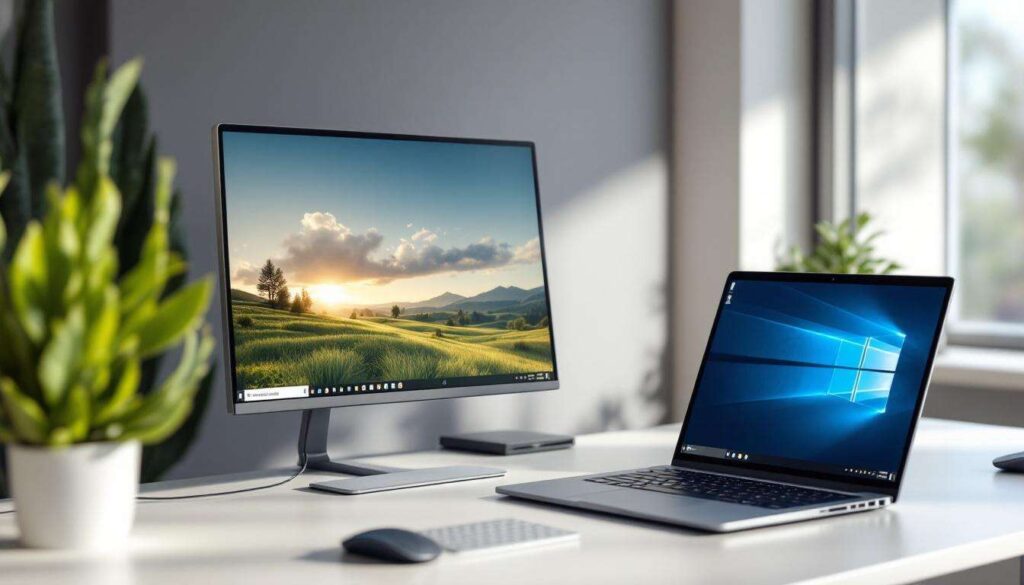
Maximising productivity on a laptop often requires more screen space than the built-in display provides. Windows includes a powerful yet frequently overlooked feature that allows users to extend their desktop across multiple monitors, transforming how they work, create, and multitask. This capability turns a single laptop screen into a multi-display workstation, offering unprecedented flexibility for professionals, students, and casual users alike. Understanding how to harness this functionality can dramatically improve workflow efficiency and reduce the frustration of constantly switching between windows.
Introduction to screen extension on Windows
What is screen extension
Screen extension represents a display mode that expands the Windows desktop across two or more monitors rather than duplicating the same content on each screen. This configuration treats connected displays as a continuous workspace, allowing users to drag windows seamlessly from one monitor to another. The feature has been integral to Windows operating systems for years, yet many laptop users remain unaware of its existence or potential applications.
The extended display differs fundamentally from mirroring or duplicating modes. Whilst duplication shows identical content on all screens, extension creates separate areas where different applications can run simultaneously. Each monitor functions as an independent section of a larger desktop environment, with the primary display typically hosting the taskbar and system tray.
Technical requirements
Implementing screen extension requires specific hardware and connectivity options:
- A laptop with available video output ports such as HDMI, DisplayPort, USB-C, or VGA
- An external monitor with compatible input connections
- Appropriate cables to connect the laptop to the external display
- Graphics drivers updated to the latest version for optimal performance
- Sufficient graphics processing capability to handle multiple displays
Most modern laptops support at least one external monitor, though high-end models may accommodate multiple additional displays. The graphics card specifications determine the maximum number of screens and the resolutions they can support simultaneously.
Understanding these foundational concepts naturally leads to exploring why this feature proves so valuable for various computing tasks.
Why extend your screen: the advantages
Enhanced productivity and multitasking
The primary benefit of screen extension lies in dramatically improved multitasking capabilities. Users can dedicate entire monitors to specific applications, eliminating the constant need to minimise and restore windows. A typical setup might display email on one screen whilst the primary monitor handles document editing or spreadsheet work.
Research consistently demonstrates that additional screen space correlates with increased productivity. Workers can reference source materials on one display whilst composing content on another, reducing cognitive load and minimising errors associated with frequent application switching.
Professional applications
Various professional fields benefit distinctly from extended displays:
- Graphic designers can view design tools on one screen and full-scale previews on another
- Programmers can write code on the primary display whilst monitoring output and documentation on secondary screens
- Financial analysts can track multiple data streams and market information simultaneously
- Video editors gain access to timeline controls on one monitor and preview windows on another
Improved organisation and workflow
Extended screens facilitate better workspace organisation. Users can establish consistent layouts where specific applications always appear on designated monitors, creating muscle memory that speeds up daily tasks. Communication tools like messaging applications or video conferencing software can occupy a secondary display, keeping them accessible without cluttering the primary workspace.
These compelling advantages make learning the configuration process worthwhile for any laptop user seeking greater efficiency.
How to configure display extension on a laptop
Basic setup procedure
Configuring screen extension follows a straightforward process once the physical connections are established. After connecting the external monitor to the laptop using the appropriate cable, Windows typically detects the new display automatically. The system may initially default to duplication mode, requiring manual adjustment to extension mode.
To access display settings, users should right-click on the desktop and select “Display settings” from the context menu. This opens the Settings application to the Display section, where all connected monitors appear as numbered rectangles representing their physical arrangement.
Step-by-step configuration
The complete configuration process involves several key steps:
- Scroll to the “Multiple displays” dropdown menu within Display settings
- Select “Extend these displays” from the available options
- Click “Apply” to activate the extended desktop configuration
- Arrange the monitor representations by dragging them to match the physical positioning
- Adjust individual display resolutions and scaling settings as needed
- Designate which monitor serves as the primary display
Advanced settings customisation
Windows offers additional customisation options for extended displays. Users can configure different scaling percentages for each monitor, accommodating screens with varying resolutions and pixel densities. The orientation setting allows rotation of displays for vertical mounting arrangements, particularly useful for reading documents or viewing long web pages.
The “Night light” feature can be enabled independently on each display, and colour profiles may be adjusted to ensure consistency across monitors with different panel technologies. These refinements create a cohesive visual experience despite potential hardware differences.
Even with proper configuration, users occasionally encounter technical difficulties that require specific solutions.
Troubleshooting common issues
Display not detected
When Windows fails to recognise a connected external monitor, several troubleshooting approaches can resolve the issue. The first step involves clicking the “Detect” button within Display settings, which forces Windows to scan for connected displays. If this proves unsuccessful, checking cable connections and trying alternative ports often identifies hardware problems.
Outdated or corrupted graphics drivers frequently cause detection failures. Accessing Device Manager and updating the display adapter drivers typically resolves these software-related issues. In some cases, completely uninstalling and reinstalling graphics drivers provides a more thorough solution.
Resolution and scaling problems
Displays appearing blurry or showing incorrect resolutions indicate scaling mismatches or improper resolution settings. Each monitor should be configured to its native resolution for optimal clarity. Windows sometimes applies inappropriate scaling, making text and interface elements appear too large or too small.
Adjusting the scaling percentage for each display individually addresses these discrepancies. Users should experiment with different values until achieving comfortable readability without sacrificing screen space. Logging out and back in after making scaling changes ensures all applications properly adopt the new settings.
Performance issues
Extended displays may cause performance degradation on laptops with limited graphics capabilities. Symptoms include:
- Reduced frame rates in applications and games
- Stuttering or lag when moving windows between displays
- Increased fan noise due to higher GPU utilisation
- Faster battery depletion when running on power alone
Lowering display resolutions or refresh rates can alleviate these problems. Closing unnecessary background applications reduces the overall system load, improving responsiveness across all connected monitors.
Once technical obstacles are overcome, implementing best practices ensures maximum benefit from the extended display setup.
Optimising the use of your extended screen
Strategic window placement
Effective use of extended displays requires thoughtful consideration of window placement strategies. Primary tasks demanding frequent attention should occupy the monitor directly in front of the user, typically the laptop’s built-in screen. Secondary monitors accommodate reference materials, monitoring tools, or communication applications that require only occasional interaction.
Windows 10 and 11 include Snap Assist functionality that simplifies window arrangement. Dragging windows to screen edges automatically resizes them to occupy half or quarter sections, facilitating organised layouts. Keyboard shortcuts like Windows key + arrow keys provide even faster window positioning across multiple displays.
Application-specific configurations
Many professional applications offer settings for multi-monitor environments. Video editing software can display timelines on one screen whilst previews appear on another. Integrated development environments allow code on the primary display with debugging consoles and documentation on secondary screens. Configuring these application preferences maximises the benefits of extended displays for specific workflows.
Ergonomic considerations
Physical monitor positioning significantly impacts comfort during extended use. External displays should be positioned at eye level, approximately an arm’s length away, with the top of the screen at or slightly below eye height. Angling monitors slightly inward creates a more natural viewing experience when using multiple displays simultaneously.
Lighting conditions deserve attention as well. Positioning monitors perpendicular to windows minimises glare, whilst adjustable brightness settings help reduce eye strain during prolonged sessions. Taking regular breaks to focus on distant objects helps prevent the fatigue associated with continuous screen viewing.
These optimisation techniques prove valuable across diverse usage scenarios that benefit from expanded screen real estate.
Practical applications for every user
Professional workflows
Business professionals utilise extended displays for enhanced presentation preparation, viewing slides on one monitor whilst editing speaker notes on another. Accountants benefit from displaying multiple spreadsheets simultaneously, facilitating data comparison and financial analysis. Project managers can monitor communication channels on secondary displays whilst maintaining focus on planning documents and schedules on primary screens.
Creative pursuits
Content creators find extended displays indispensable for creative workflows. Photographers edit images on colour-calibrated primary displays whilst maintaining thumbnail browsers and adjustment panels on secondary screens. Musicians use digital audio workstations with mixer controls on one display and arrangement views on another, streamlining the production process.
Educational applications
Students benefit significantly from extended displays during research and writing projects. Academic papers can be composed on the primary screen whilst research materials, citations, and reference documents remain visible on secondary displays. Online learning becomes more manageable with lecture videos on one monitor and note-taking applications on another, eliminating the need to constantly switch between windows.
Entertainment and gaming
Extended displays enhance entertainment experiences beyond professional applications. Gamers can dedicate one screen to gameplay whilst monitoring chat applications, streaming software, or game guides on secondary displays. Streaming video content on one monitor allows simultaneous browsing or work on another, maximising leisure time efficiency.
| User Type | Primary Display Use | Secondary Display Use |
|---|---|---|
| Office Worker | Document editing | Email and communication |
| Developer | Code editor | Documentation and testing |
| Designer | Design software | Asset libraries and previews |
| Student | Writing assignments | Research materials |
Screen extension on Windows laptops transforms single-display limitations into expansive digital workspaces. The configuration process requires minimal technical expertise, involving simple settings adjustments once hardware connections are established. Users gain substantial productivity improvements through enhanced multitasking capabilities, better application organisation, and reduced cognitive load from constant window switching. Troubleshooting common issues typically involves updating drivers, adjusting resolution settings, or optimising performance parameters. Strategic window placement, application-specific configurations, and ergonomic considerations maximise the benefits of extended displays across professional, creative, educational, and entertainment applications. This frequently overlooked Windows feature represents one of the most impactful upgrades available to laptop users seeking to enhance their computing experience without significant investment.