



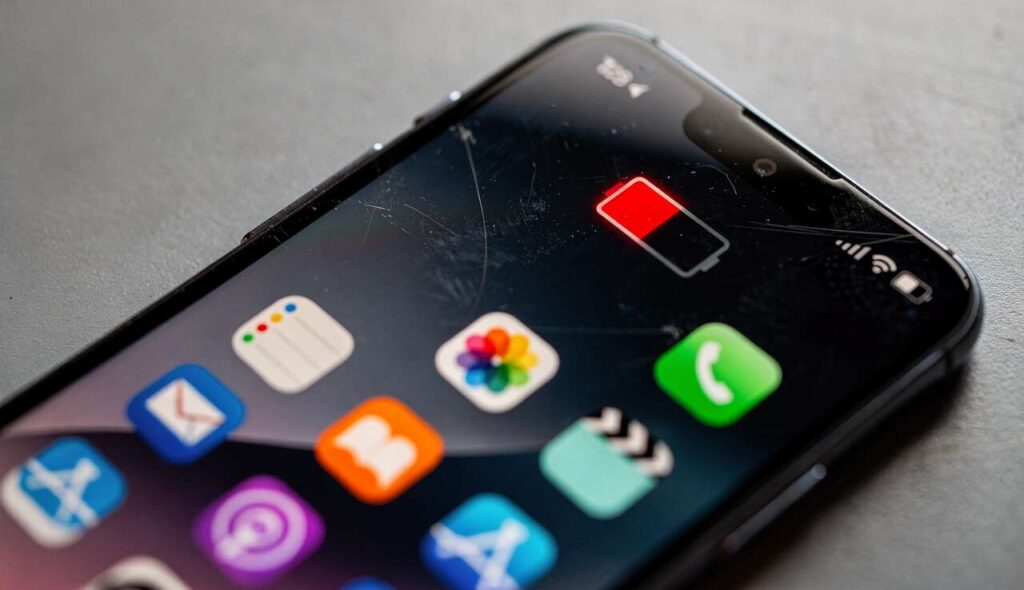
Smartphones have become indispensable companions in daily life, yet nothing frustrates users more than watching their battery percentage plummet without explanation. Many people find themselves constantly tethered to charging cables, wondering why their device can’t maintain power throughout the day. The culprit often lurks in plain sight, hidden within the phone’s settings and indicated by a specific icon that reveals which application is secretly consuming excessive energy. Understanding how to identify this power-draining element can transform your mobile experience and extend your device’s operational time significantly.
Why is your phone battery draining fast ?
Background processes consuming resources
Modern smartphones run numerous applications simultaneously, even when you’re not actively using them. These background processes continue to operate, refreshing content, synchronising data, and maintaining connections to servers. Social media applications frequently check for new messages, email clients constantly poll for incoming mail, and location services track your movements. Each of these activities requires processing power and network connectivity, which directly impacts battery consumption. The cumulative effect of multiple apps running in the background creates a significant drain that often goes unnoticed until the battery level drops dramatically.
Screen brightness and display settings
The display represents one of the most energy-intensive components of any smartphone. Maximum brightness settings, extended screen timeout periods, and high refresh rates all contribute to accelerated battery depletion. Many users fail to adjust their brightness levels according to ambient lighting conditions, keeping screens unnecessarily bright even in dimly lit environments. Additionally, features such as always-on displays and live wallpapers continuously consume power, even when the phone appears inactive.
Network connectivity issues
Poor signal strength forces your device to work harder to maintain connections. When your phone struggles to find a stable mobile network or Wi-Fi signal, it increases transmission power, which rapidly depletes the battery. The following connectivity features are particularly demanding:
- Bluetooth continuously searching for devices
- Wi-Fi scanning for available networks
- Mobile data switching between 4G and 5G networks
- GPS location services running constantly
- NFC remaining active without purpose
These symptoms point towards specific applications that warrant closer investigation, leading us to examine the telltale signs that reveal the true power culprits.
Identifying the suspect icon: symptoms and location
Accessing battery usage statistics
Both Android and iOS devices provide detailed battery usage information through their settings menus. On Android devices, navigate to Settings, then Battery, where you’ll find a comprehensive breakdown of power consumption by application. iOS users should access Settings, then Battery, to view similar statistics. These screens display a list of applications ranked by their energy consumption, typically showing usage over the past 24 hours or the last ten days. The icon at the top of this list represents the primary battery drain source.
Understanding the battery usage interface
The battery statistics screen presents information in various formats. A graphical representation shows battery level changes throughout the day, with corresponding activity periods marked below. Tapping on individual applications reveals more detailed information about their power consumption patterns, including screen time and background activity. This interface distinguishes between active usage and background operations, helping users understand whether an app drains power whilst in use or whilst running silently.
| Battery indicator | Meaning | Action required |
|---|---|---|
| High screen-on time | Excessive active usage | Reduce usage duration |
| Background activity | App running when closed | Restrict background access |
| Location services | Constant GPS tracking | Change to “while using” |
Once you’ve identified the problematic application through these indicators, the next step involves taking concrete action to manage these power-hungry programmes effectively.
Power-hungry apps: how to spot and manage them
Common culprits and their characteristics
Certain application categories consistently appear as major battery consumers. Social media platforms like Facebook, Instagram, and TikTok frequently top the list due to their constant content refreshing, video autoplay features, and location tracking. Streaming services such as Netflix, YouTube, and Spotify drain batteries through continuous data transmission and screen activity. Gaming applications demand substantial processing power and graphics rendering, whilst navigation apps like Google Maps and Waze use GPS intensively alongside screen display.
Restricting background activity
Modern operating systems offer granular control over application permissions and background behaviour. For Android devices, access Settings, then Apps, select the problematic application, and tap Battery. Here you can choose “Restricted” to prevent background activity. iOS users should navigate to Settings, General, then Background App Refresh, where they can disable this feature for specific applications. This selective restriction ensures that only essential apps can operate in the background whilst limiting unnecessary power consumption.
Alternative lightweight applications
Many popular applications offer lighter versions designed specifically for reduced resource consumption. Consider these alternatives:
- Facebook Lite instead of the standard Facebook app
- Messenger Lite for simplified messaging
- YouTube Go for offline viewing capabilities
- Twitter Lite for streamlined social media
- Opera Mini for efficient web browsing
Beyond specific applications, certain habitual behaviours and settings configurations inadvertently accelerate battery depletion without users realising their impact.
Common mistakes that drain your battery unknowingly
Leaving unused features enabled
Many smartphone users maintain active connections and features that serve no immediate purpose. Bluetooth remains switched on despite no connected devices, Wi-Fi continues scanning even when mobile data suffices, and location services run perpetually for applications that rarely require positioning data. These dormant features create a constant background drain that accumulates throughout the day, significantly reducing overall battery life.
Notification overload
Each notification that illuminates your screen and triggers vibration or sound consumes power. Applications configured to send frequent alerts constantly wake the device from sleep mode, preventing it from entering low-power states. Email applications checking every few minutes, news apps sending breaking updates, and social media platforms notifying about every interaction create a relentless cycle of power consumption. Reducing notification frequency or disabling non-essential alerts can substantially improve battery performance.
Ignoring software updates
System updates frequently include battery optimisation improvements and bug fixes that address power management issues. Postponing these updates means missing out on efficiency enhancements that manufacturers specifically design to extend battery life. Similarly, outdated applications may contain inefficient code that consumes more resources than necessary, whilst updated versions often incorporate performance improvements.
Extreme temperature exposure
Lithium-ion batteries perform optimally within specific temperature ranges. Exposing devices to excessive heat or cold affects chemical reactions within the battery, reducing efficiency and accelerating degradation. Leaving phones in direct sunlight, inside hot vehicles, or in freezing conditions forces the battery to work harder to maintain functionality, resulting in faster depletion and long-term capacity loss.
With these common pitfalls identified, implementing proactive measures can significantly enhance your device’s battery performance and longevity.
Optimising your battery’s lifespan: tips and advice
Enabling battery saver modes
Both major operating systems include dedicated power-saving features that automatically adjust settings to conserve energy. Android’s Battery Saver and iOS’s Low Power Mode reduce background activity, limit visual effects, decrease screen brightness, and restrict automatic downloads. Activating these modes when battery levels drop below 20 per cent can extend operational time significantly, often providing several additional hours of usage.
Optimal charging practices
Contrary to popular belief, modern batteries don’t require complete discharge cycles. Maintaining charge levels between 20 and 80 per cent promotes battery health and longevity. Avoiding overnight charging prevents the battery from remaining at 100 per cent for extended periods, which can accelerate degradation. Using original or certified chargers ensures appropriate voltage and current delivery, preventing potential damage from incompatible accessories.
Display and performance adjustments
Simple modifications to display settings yield substantial battery improvements:
- Enable adaptive brightness for automatic adjustment
- Reduce screen timeout to 30 seconds or one minute
- Switch to dark mode on OLED screens
- Lower refresh rate from 120Hz to 60Hz when high performance isn’t needed
- Disable live wallpapers and animated backgrounds
Despite implementing these optimisation strategies, certain warning signs indicate that battery issues extend beyond simple software adjustments and require professional attention.
When to worry: signs indicating a more serious battery issue
Physical battery deterioration
Visible changes to your device’s physical condition often signal battery degradation or failure. A bulging back cover, separation between screen and chassis, or distorted device shape indicates battery swelling, a potentially dangerous condition requiring immediate professional intervention. This swelling occurs when gases build up inside the battery casing due to chemical breakdown, creating pressure that deforms the device.
Rapid percentage drops and unexpected shutdowns
If your battery percentage plummets from 50 per cent to 10 per cent within minutes, or your device shuts down despite showing remaining charge, the battery’s ability to hold and report accurate capacity has diminished. These erratic behaviours suggest that the battery’s internal chemistry has degraded beyond normal wear, affecting its ability to store and deliver power consistently.
Excessive heat generation
Whilst smartphones naturally generate warmth during intensive tasks, excessive heat during light usage or charging indicates problems. A battery that becomes uncomfortably hot during routine activities or whilst charging may be failing, creating internal resistance that converts electrical energy into heat rather than stored power.
Checking battery health metrics
iOS devices provide battery health information under Settings, Battery, then Battery Health, displaying maximum capacity as a percentage. Values below 80 per cent indicate significant degradation. Android users may need third-party applications to access similar information, though some manufacturers include battery health tools in their settings menus. When health metrics show substantial decline or when physical symptoms appear, professional battery replacement becomes necessary to restore proper device functionality.
Understanding battery drain causes empowers users to take control of their device’s power consumption. By identifying problematic applications through battery usage statistics, managing background processes, avoiding common mistakes, and implementing optimisation strategies, most users can significantly extend their daily battery life. However, recognising when software solutions prove insufficient and hardware intervention becomes necessary ensures device safety and optimal performance. Regular monitoring of battery health and prompt action when warning signs appear protects both your investment and your data accessibility throughout each day.